Account Settings
Business name, branding, and your own SMTP server for unlimited invitations.
The Account Settings page is where you set the things that apply to your whole RateMind account — your business name, your logo, and (optionally) your own email server for sending invitations.
Open it from Settings in the sidebar.
General
Your business name and website.
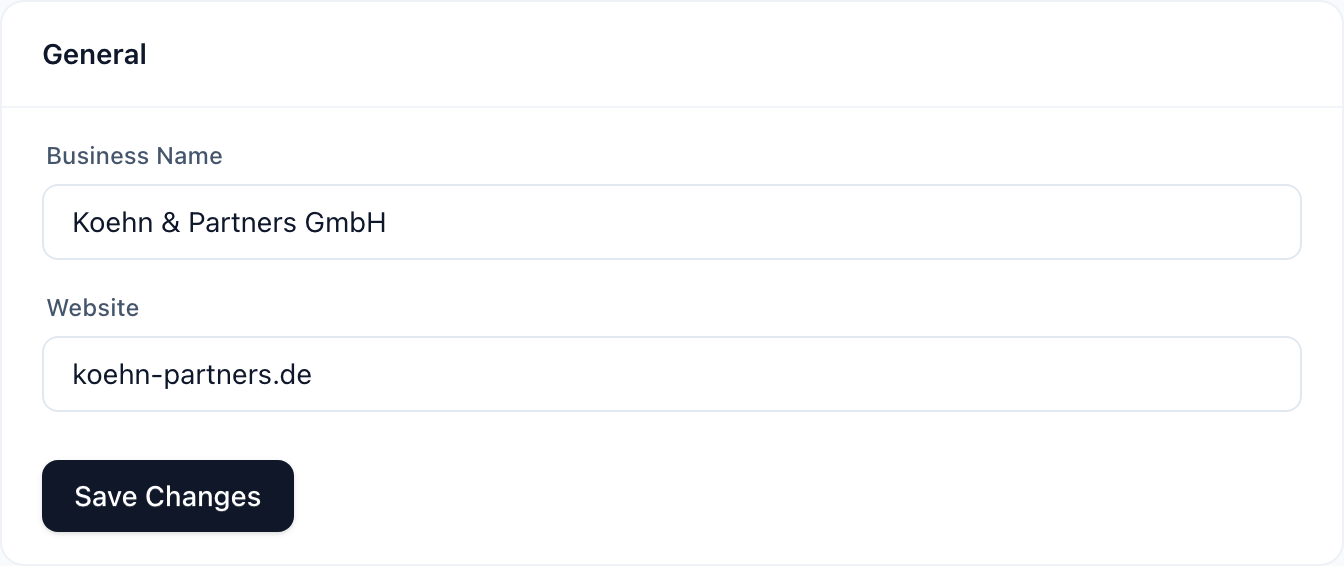
Business Name shows up in the sidebar at the top, in invitation emails, on the survey landing page, and on the print-ready QR card. Use the public-facing name your customers know you by — not your legal entity name unless they're the same.
Website is optional. Currently used as a fallback for the survey landing page's branding when no logo is uploaded. Just the domain — no https://, no path.
Hit Save Changes when you're done.
Branding
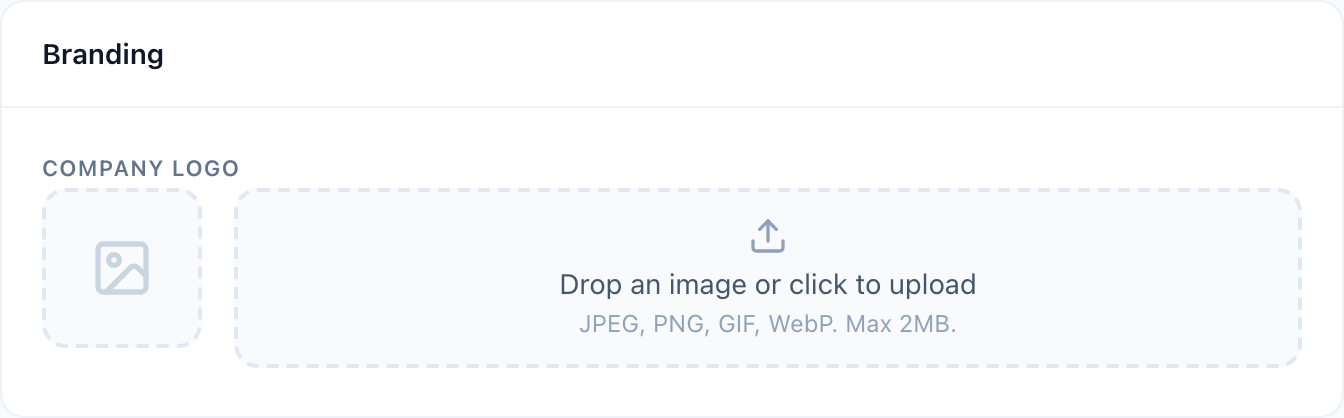
Upload your company logo here. It shows up on the survey landing page (above the welcome headline), in invitation emails, and on the print-ready QR card.
A few practical notes:
- Format: PNG, JPEG, GIF, or WebP. PNG with a transparent background looks best on the survey landing page.
- Size: max 2MB. If your logo is bigger, run it through any compression tool — most logos compress to <100KB without quality loss.
- Aspect: roughly square logos work best. Wide horizontal logos get rendered very small.
- Background: white or transparent backgrounds work everywhere. Dark backgrounds look fine on the landing page but may clash with the print-ready card layout.
To replace the logo, just upload a new one — it overwrites the previous one.
Email Settings (SMTP)
This is the most powerful — and the most overlooked — setting in RateMind.
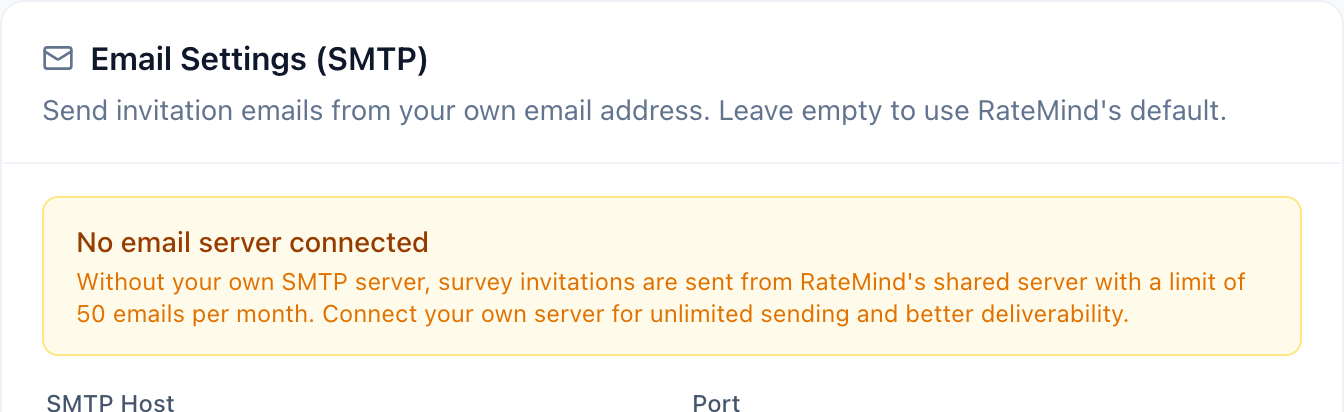
By default, RateMind sends invitation emails from a shared server with a 50 emails per month limit. That's enough to try the product, but you'll hit the cap fast if you're using [BCC](/help/email-bcc-setup) actively.
Connecting your own SMTP server fixes two things:
- Unlimited sending — no more monthly cap. You're limited only by your own SMTP provider's rate.
- Better deliverability — emails come from your domain instead of
@ratemind.net, so customers are less likely to mark them as spam.
What you need
Fill in the fields with credentials from your email provider:
- SMTP Host — e.g.
smtp.sendgrid.net,smtp.gmail.com,smtp.eu.mailgun.org - Port — usually 587 (STARTTLS) or 465 (SSL/TLS)
- Username — from your provider (often your full email address)
- Password — from your provider (often an app-specific password or API key, not your account password)
- From Email — the address invitations are sent from. Must be a verified sender on your SMTP provider.
- From Name — what shows up as the sender name (e.g. "Koehn Restaurant")
- Use TLS — keep on unless your provider explicitly says otherwise
Common providers
- SendGrid — host
smtp.sendgrid.net, port587, usernameapikey, password is your API key. Free tier covers 100 emails/day. - Mailgun — host
smtp.mailgun.org(or.eu.mailgun.org), port587. Free tier covers 100 emails/day. - Postmark — host
smtp.postmarkapp.com, port587. Excellent deliverability, paid only. - Gmail / Workspace — host
smtp.gmail.com, port587. Requires an app password if 2FA is on. Daily limits apply. - Your existing transactional provider — most providers (AWS SES, Brevo, MailerSend, etc.) work the same way.
Test before you rely on it
After saving, send yourself a test invitation. Confirm:
- The email arrives within a minute or two
- The sender shows as your business name, not "RateMind"
- The email lands in the inbox, not spam
If it lands in spam, you may need to set up SPF/DKIM/DMARC records for your sending domain. Most providers have a one-page setup guide.
Data and privacy
A few invariants worth being explicit about:
- Customer email addresses are AES-256-GCM encrypted before they hit the database. The decryption key is in a separate environment variable, not in the database. In your dashboard you see masked previews (
joom). - We do not share customer data with any third party. No analytics tracking embedded in customer-facing emails, no data sold or syndicated.
- You own your data. Deleting an account closes it and schedules all data — including encrypted feedback — for permanent erasure after a 30-day grace period. You can restore the account from "Closed accounts" until then; once the grace period ends, the data is irreversibly erased. We keep only a minimal deletion log (with a hashed, not readable, email) as proof the erasure happened.
- GDPR compliance is baked in by design, not bolted on. The encryption-at-rest pattern means that even a database breach wouldn't expose customer emails in readable form.
What's next
- [Managing Your Team](/help/team-management) — invite teammates with appropriate roles
- [Billing & Subscriptions](/help/billing) — plan limits and how usage is counted