Setting Up BCC Email Collection
Capture customer feedback automatically from your existing email workflow — no integration required.
This is the lowest-friction way to collect feedback. You keep emailing customers exactly as you do today — order confirmations, invoices, follow-ups, anything. The only change: add one address to the BCC field. RateMind reads the recipient from the "To" header, waits a configurable amount of time, then sends them a feedback request.
No integration. No API keys. No CRM connection. Just BCC.
Why BCC
The customer never sees the RateMind address — that's what "Blind Carbon Copy" means. They get your normal email, and then separately (usually an hour later) they receive a feedback invitation from us. Two emails, two contexts, no awkward "we shared your email with this third party" moment.
The bigger reason: BCC requires zero changes to your team's workflow. You don't need to retrain anyone, you don't need a new tool, you don't need to wait for IT to integrate something. Anyone who emails customers today can start collecting feedback by adding one address to their contacts.
Find your BCC address
Open the survey, click Share & Collect at the top, scroll to the Email BCC card.
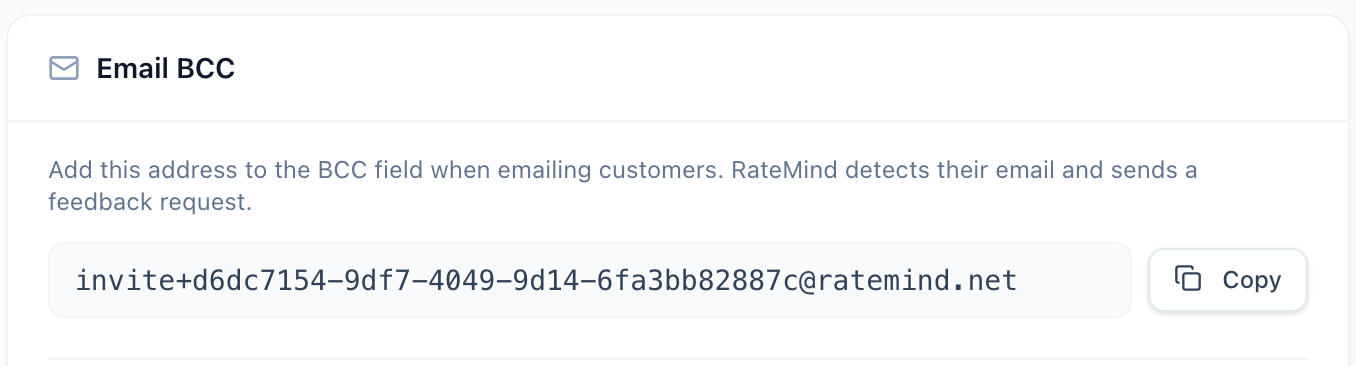
Every survey has its own unique address — that's how RateMind knows which survey to send. Don't share addresses across surveys, and don't reuse addresses from old surveys you've deleted.
The address looks like invitation+. Click Copy and paste it wherever you need it.
How to actually use it
Three options, from least to most automated:
Option 1: paste it manually
When you send a customer email, type the BCC address into the BCC field by hand. Works for any email client. Best when feedback is one part of a larger personal email.
Option 2: add it as a contact
Save the BCC address as a contact named "RateMind Feedback". When you start typing "rate..." in the BCC field, autocomplete fills it in. One keystroke instead of pasting.
Option 3: auto-BCC every customer email
Both Gmail (via Workspace routing rules) and Outlook (via Rules) can automatically add a BCC address to outgoing messages. Set up a rule that auto-BCCs based on outgoing folder or sender. After this, you literally do nothing — every customer email triggers a feedback request automatically.
Gmail — works only on Workspace accounts. Admin Console → Apps → Google Workspace → Gmail → Routing → Add setting → "Add more recipients" → BCC. Apply to outgoing.
Outlook — works on any account. File → Manage Rules & Alerts → New Rule → "Apply rule on messages I send" → Conditions (e.g. "with specific words in the recipient address") → Action: "CC the message to people" (this works for BCC too if you set it that way at the Exchange/server level; for client-only setup, an add-in like SimplyBCC is more reliable).
Configure the delay
Under the BCC card on the same tab, you'll find this:

This is how long RateMind waits after detecting the BCC before sending the feedback request. Default is 60 minutes.
- 0 minutes — fire immediately. Useful for testing or when the customer experience is purely digital and they're "done" the moment your email arrives.
- 30-60 minutes — typical for service businesses. Gives the customer time to read your email, maybe react to it, and not feel ambushed.
- 1-7 days — for delayed experiences (e.g., your email is a shipping notification but the product arrives later). Wait until the actual experience has happened.
You can change units between minutes, days, and weeks. Pick whatever makes sense for your business.
Privacy and security
The customer's email address is detected from the "To" header of your outgoing message, then encrypted with AES-256-GCM before it's written to our database. The decryption key never leaves the server. In your dashboard, you see masked versions only (e.g. joom).
This is GDPR-compliant by design. Even if our database were stolen, the email addresses would be unreadable without the key — and the key isn't in the database.
For deeper context: every BCC capture is also linked to the original survey, so when a customer responds, RateMind knows exactly which invitation it came from. The unique BCC address per survey is what makes this work.
Reminders
Customers who don't respond to the first invitation can get follow-up emails automatically. Configure how many and how long to wait under the [survey's reminder settings](/help/creating-surveys#reminders). Reminders only fire for BCC invitations — QR codes and direct links don't capture an email, so there's no one to remind.
What's next
- [QR Codes](/help/qr-codes) — the in-person equivalent: no email needed, customers scan and rate
- [Understanding Your Analytics](/help/analytics-dashboard) — where the BCC-captured feedback shows up and how to read it