Using QR Codes
Print-ready feedback collection for physical locations — receipts, table tents, packaging.
QR codes are the in-person equivalent of the [BCC method](/help/email-bcc-setup). The customer scans, lands on your survey, rates. No email is captured, no follow-up reminders, no integration — just a piece of paper or a sticker that turns into feedback.
This is the right channel when you don't have customer email addresses but you do have physical proximity: restaurants, retail, hotels, salons, gyms, anywhere there's a counter or a table.
Find your QR code
Open the survey, click Share & Collect, scroll to the QR Code section.
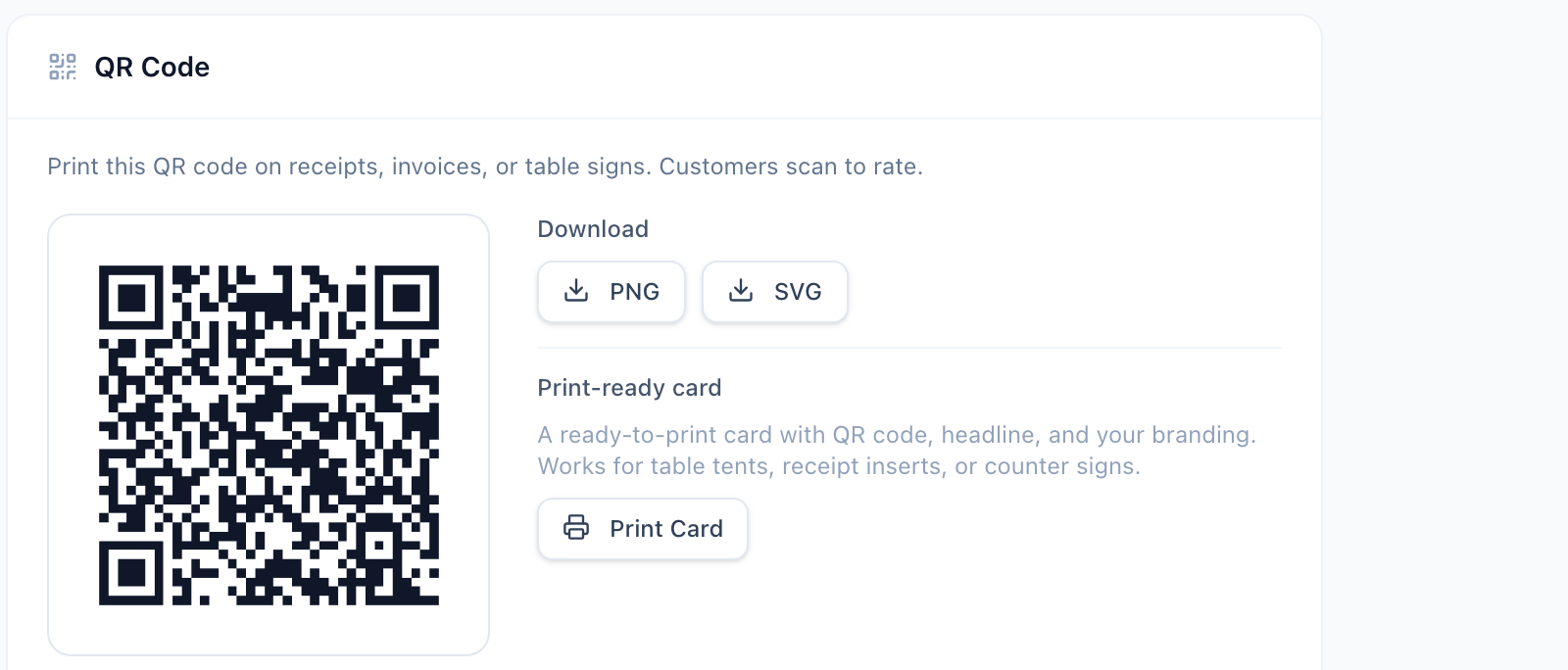
The QR is generated per-survey and never changes — print it once and reuse forever. If you have multiple surveys (e.g., one per location), each gets its own unique QR.
Three ways to use it
Download PNG — best for digital use. Embed in your website, drop into Canva designs, print on receipts or labels. PNG is widely supported.
Download SVG — best for print and signage. Scales to any size without losing quality. Use this when designing flyers, table tents, or posters in Illustrator/Figma/Sketch.
Print Card — generates a ready-to-print A6/business-card format with the QR, a "How was your visit?" headline, and your business name/logo (if you uploaded one in [Account Settings](/help/account-settings)). Hit print, cut, deploy. Fastest way to go from "we want feedback" to "we have feedback in the box".
Where to place QR codes
The placement determines whether anyone actually scans. The pattern that works: somewhere the customer is *already looking* and *already done*. Some examples:
- Restaurants — bottom of the bill or printed receipt, table tent at the center of the table, sticker on the menu's back cover
- Retail — bottom of the printed receipt, sticker near the exit door, included with the purchase wrapping
- Hotels — in-room card on the desk or nightstand, sticker on the elevator panel, on the back of the keycard sleeve
- Service businesses (salons, garages, vets) — invoice footer, business card insert in the take-home folder
- Cafés — coaster, takeaway cup sleeve, payment terminal sticker
Counter-examples to avoid: don't put the QR somewhere the customer can't scan with one hand (they need to hold the phone), don't put it where they have to look for it (it competes with everything else), and don't put it where they're rushing past (they won't scan).
What customers see
When a customer scans, they go directly to your survey's landing page — same one as the [Direct Link](/help/email-bcc-setup) shares. They see your welcome headline, pick a rating, and either get redirected to your review platform or fall into the internal questions.
QR feedback is anonymous by default. We don't capture an email address, IP, or device fingerprint. This is intentional — most jurisdictions consider an unprompted scan in a public space a different consent model than entering an email, and we treat it that way.
What does a good rate of scans look like?
In practice, around 1-5% of customers who *could* scan actually do. That sounds low, but it adds up. A café with 200 daily customers seeing a 2% scan rate = 4 ratings per day = 120 per month. That's enough to move your Google rating.
If you're seeing fewer than 1%, the placement is probably the problem. Reconsider where the QR sits and whether there's an obvious "why scan?" — a one-line headline next to the code helps ("Scan to share your feedback").
What's next
- [BCC Email Setup](/help/email-bcc-setup) — for customers you email, not the ones who walk in
- [Creating and Configuring Surveys](/help/creating-surveys) — every setting on the survey page explained