Using the Form Builder
Add follow-up questions for the customers who rate below your threshold.
The form builder is what customers see when they rate below your threshold. Above-threshold customers get redirected to your public review platform and never see these questions. So this is where you learn *why* an unhappy customer is unhappy — before they have a chance to make it public.
Where to find it
Open a survey, click the Questions tab at the top. You'll see the list of questions already in place.
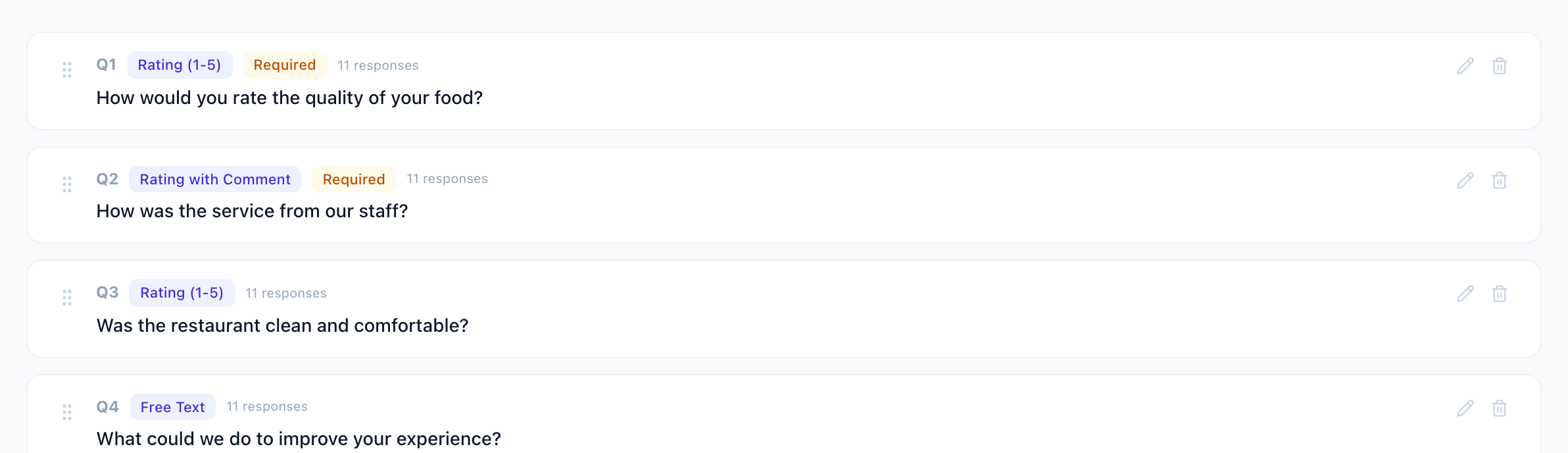
Each row shows the question text, the type (Rating, Free Text, etc.), whether it's required, and how many customers have answered it. The drag handle on the left lets you reorder; the pencil and trash icons on the right are edit and delete.
Adding a question
Click Add Question at the top right of the list. The form looks like this:
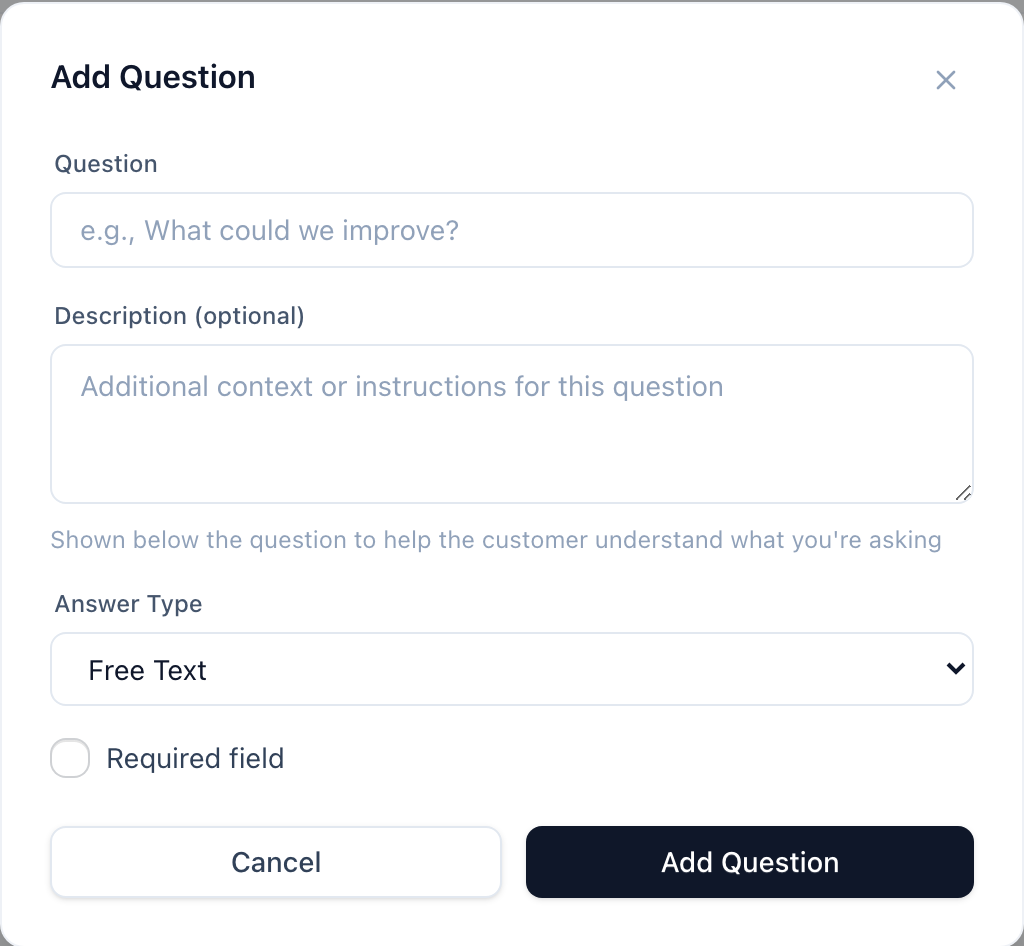
Three things to set:
- Question text — what the customer sees. Phrase it as an open question, not a leading one. "What could we improve?" is better than "Was the wait time too long?"
- Description — optional helper text shown under the question. Use it to add context ("Specific examples help us most") or constrain the answer ("Pick the one that bothered you most"). Skip it if the question stands on its own.
- Answer Type — what kind of response you want. Seven options:
- Free Text — open-ended. Highest information value, lowest completion rate. Use for one or two key questions, not the whole survey.
- Rating (1-5) — quick numeric. Good for measuring specific aspects ("Rate the service").
- Rating with Comment — a rating *and* a text field below. The best of both: a number for analytics, a comment for nuance.
- Single Choice — pick one option from a list. Use when the answer is one of a known set of categories.
- Multiple Choice — pick several from a list. Use for "all that apply" questions.
- NPS (0-10) — the Net Promoter Score scale ("How likely are you to recommend us?"). Use sparingly — once per survey is plenty.
- Yes / No — binary. Use for confirmations or filters, not for the main question.
Finally, the Required field toggle. Required questions block submission until answered. Use it for the one or two questions you actually need; making everything required tanks the completion rate.
Choice-type questions need options
If you pick Single Choice or Multiple Choice, an extra section appears underneath where you define what the customer can choose.
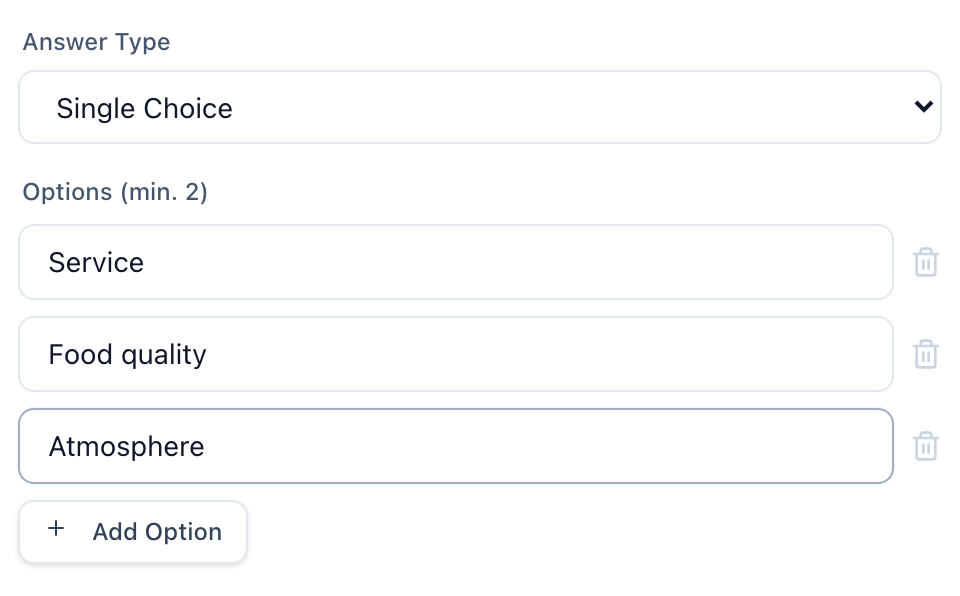
A few rules:
- Minimum two options. The form won't let you save with one.
- Keep options short — two or three words. Long options become hard to scan.
- Cover the common cases plus one catch-all ("Other") if you want completeness without a long list.
- Don't put your customers in the position of picking between two bad answers. If "Service" and "Food" don't cover the problem they had, add what does.
The + Add Option button at the bottom adds more rows. The trash icon next to a row removes it.
Reordering and editing
Drag the handle on the left of any question to reorder. The change saves as soon as you drop. Click the pencil icon to edit a question; the trash icon to delete one.
Deleting a question that already has answers will warn you first — those existing answers are kept (they still show in the [Analytics dashboard](/help/analytics-dashboard)) but no new ones can come in.
How many questions is too many?
Survey-design research is consistent on this: every question after the third costs you completions. The customer is already annoyed — they rated you below 4 stars — and a long form makes them quit.
Our recommendation:
- One free-text question ("What could we improve?")
- One to two specific ratings ("Rate the speed", "Rate the friendliness") if you want to attribute the unhappiness to a specific aspect
- Done. 3-4 questions max for the unhappy flow.
If you have a strong reason for more, split them: put the most important question first, mark only it as required, and let customers exit early without losing what they wrote.
What's next
- [Creating and Configuring Surveys](/help/creating-surveys) — full reference for every survey setting
- [Understanding Your Analytics](/help/analytics-dashboard) — how answers show up in the feedback feed and topic spotlight